task
Produce an order with print and stocked items
Last updated October 23, 2026
A customer order can need both a decorated blank and something already on the shelf. They meet in the same shipping bin and leave as one carton.
This is not a stock order. A stock order has no customer and ends in Place in warehouse. See Produce a stock order.

The two kinds of line
| Line | What it is | How it leaves the building |
|---|---|---|
| You decorate a house blank | Batch, print, QC, then shipping bin | |
| Stocked | House retail or seller stock already on a slot | Pick list, then the same shipping bin |
Seller owned goods and house finished goods are never consumed as blanks. A product set to print when stock runs out (Hybrid) prints when Available does not cover the line.
1. Batch the order
- Open Manufacturing → Items.
- Batch the lines as you usually do.
- Open Manufacturing → Batches.
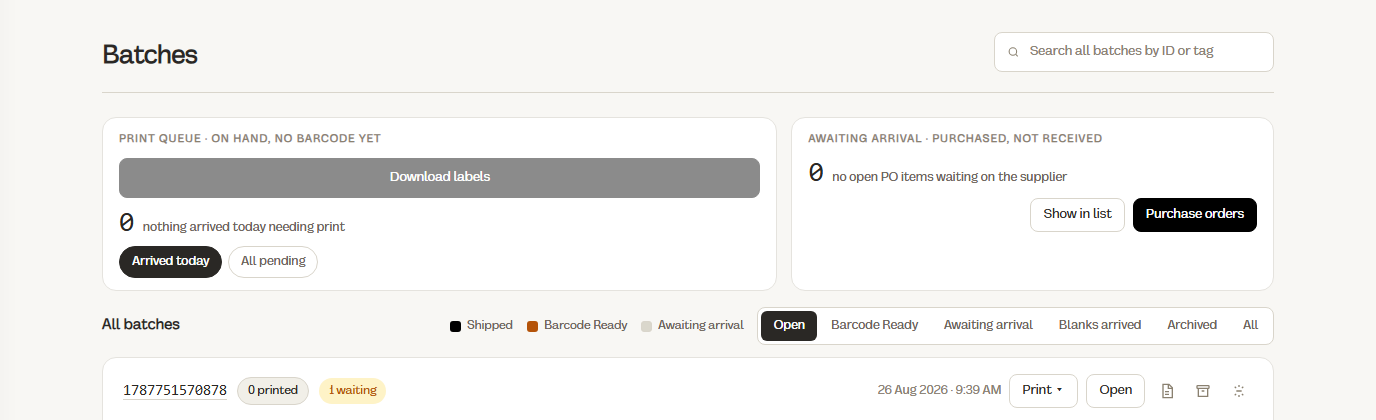
Stocked lines on the order do not go on the press. They need a warehouse pick, not a decoration.
When the batch is made, Riverr takes stocked lines from stock, as many units as are there, and records how many it took for each line. That record decides what the pick has to do.
2. Generate the stocked pick
On the batch, open More → Generate pick task (stocked). The number next to it is how many stocked units the batch holds. The button is off when there are none.
Riverr asks Pick #N ready. Open Warehouse → Tasks? If a pick is already open for this batch it says (already open for this batch) and reuses it. It never holds the same units twice.
The pick is made in the warehouse at the batch's location.
3. Walk only lines and remainder lines
Each line on the pick is one of two kinds. The difference is what happens to stock.
| Line | When | What Complete does |
|---|---|---|
| Walk only | The batch already took those units from stock. The line reads Already taken at batch, walk and carry | Nothing moves in stock. The picker just walks the units to the tote. |
| Pick the remainder | A seller stock line the batch took none of, or only part of | The units are held when the task is made and come off the bin when you complete the line |
So stock never comes off twice. A line the batch covered is only a walk. A seller line the batch could not cover is a real pick for whatever is left.
House finished goods work like blanks: units the batch could not take from on hand are not picked from the shelf. They wait for new stock and go on the next purchase order.
4. Print into a shipping bin
Run print and QC. Finished print units go into a shipping bin, a tote and not a shelf. See open totes under Manufacturing → Bins.
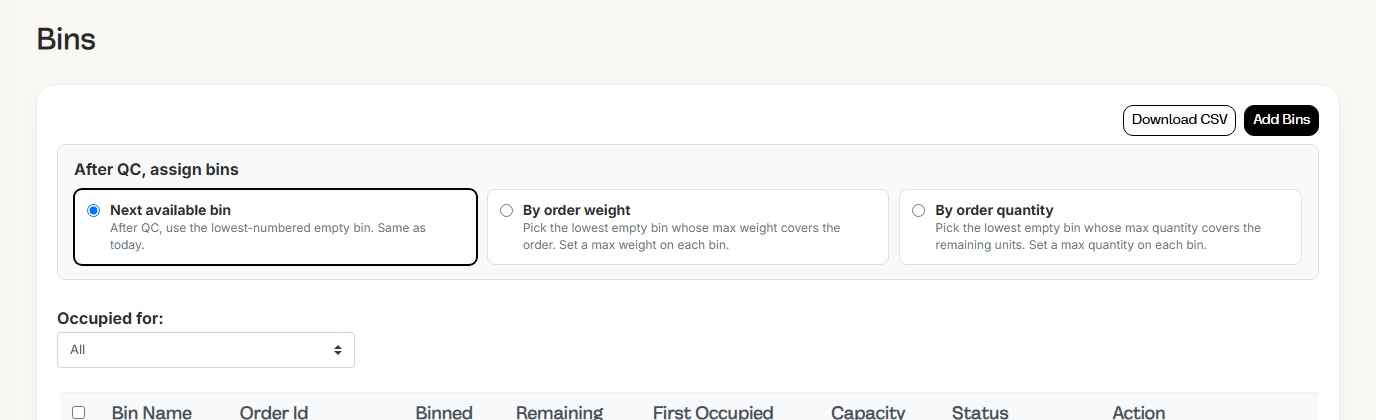
If you try to finish the tote early you see Waiting on stocked/premade picks. The carton is not ready until the pick is in.
5. Pick into the same bin
- Open Inventory → Tasks.

- Open the Pick list. Lines follow the pick path.
- Pick from the slot shown on each line (house retail, or that seller's slot).
- Drop the units in the same shipping bin as the print lines.
- Click Complete on each line.
Short a line by lowering its quantity before Complete. Only that line closes short; the held units you did not pick go back to available and the slot is flagged for restock.
6. Ship once
When print and pick are both in the tote, click Ship Now on the order or the QC dialog. One carton.
Seller line with no stock here
A seller line ships from stock only when that seller's Available covers the whole line. Otherwise its Mode decides: Stocked holds the line until stock arrives, Hybrid prints it, POD always prints. See See seller stock, space, and sync. To ship it from stock, have the seller send inventory, or place a stock order for them.
If it will not pick
- No stocked/premade lines in this batch to pick: the batch has no stocked lines. Print lines never go on a pick.
- Exception lines on the pick: the item is not on a slot yet. Receive or add inventory, put it away, then generate again.
- Batch trying to use seller stock as a blank: that path does not exist. Pull a house blank for print lines only.
More: Warehouse fix it.