task
Buy and receive house blanks
Last updated October 23, 2026
Stock type: Blanks. You own them. You bought them to decorate. They leave when a batch consumes them, not by pick.
If you are buying something you will sell as is, that is finished goods. See Bring in house finished goods.
Where
Inventory → Purchase orders to buy. Inventory → Receiving or the purchase order itself to receive. Inventory → Tasks to put away. Inventory → Stock → Blanks to see on hand.
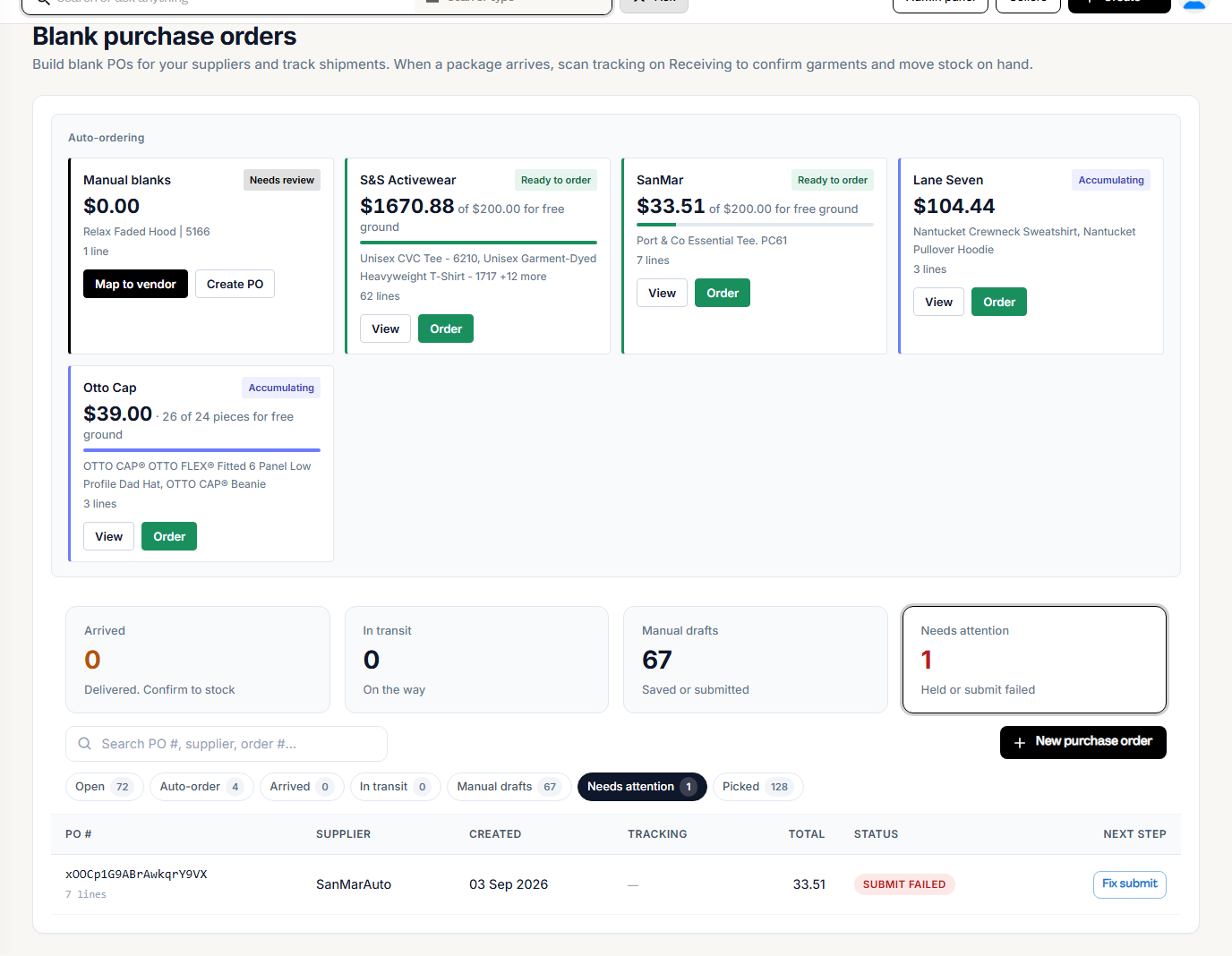

Buy
- Open Inventory → Purchase orders and choose New purchase order.
- Add the blanks. Import from Batches buys for batches you already made; Add Manually picks sizes and quantities yourself.
If your shop keeps stock by location, pick Receive into: the location where the units count. Match the ship to address uses the location the order ships to.
- Send it. On the last step, place the order on your supplier account (Place order on this account). An auto ordering purchase order shows Order instead, or Mark as ordered if you placed it yourself.
Sending also lowers the shortfall Riverr tracks for that blank, so it stops counting those units as still needed.
Receive
- When the box lands, open the purchase order. If it is not marked yet, press Mark as arrived, then Confirm receiving. You can also scan the carrier tracking barcode on Inventory → Receiving to open it.
- Count. For each line, enter This shipment. If units are missing, enter them under Short with a reason (Missing, Defective, or Not in box), or press Report shortage for the whole remainder. If the supplier sent more than you ordered, enter everything that arrived. The line shows 4 over the ordered quantity.
- Press Continue to confirm.
- Confirm. The page splits the units:
- Already batched: units for order lines already in a batch. Their barcodes print on confirm, grouped by batch.
- Not in a batch: units for order lines not batched yet. Choose Batch now to make the batch here, or Put away to shelve them. Put away units stay held for their orders.
- Press Confirm receive, then print the labels. If any units are over, Riverr asks once before it adds them to stock as overage.
Your count is what enters the building.
Upload a packing list instead of typing
If the supplier sent a packing list, press Upload packing list on the count step and choose the file. Save it as CSV first; any layout works.
- Riverr matches each row to this purchase order: first by a match you used before, then by barcode, SKU, style, color and size, or the description.
- Matched rows fill This shipment for you. Rows that match more than one line ask you to Choose a line.
- Rows under Not on this purchase order are left out, so you can check them against the box.
- Press Use these numbers, then check the counts as usual. The matches you use are remembered, so the next list from that supplier fills in on its own.
Units still missing
When you marked units Short, the next screen says how many are still open on this purchase order:
- Keep them open if the supplier is sending them later. They keep counting as Incoming.
- Close the rest if they are not coming. They stop counting as Incoming, and any of them still needed for orders go back to Required for your next purchase order.
You can also do this later: the purchase order shows Close the rest on any line with units still open, and N closed short once you have.

What receiving does to stock
| Units | What happens |
|---|---|
| For the part of a batched line the batch could not take from the shelf | Go straight to print. They do not touch On hand |
| For a line whose batch took all its blanks from the shelf | Refill the shelf. On hand goes up |
| For lines not in a batch (Batch now or Put away) | On hand goes up. Batch now then takes them for the new batch |
| On no order (a plain restock) | On hand goes up |
| Over the ordered quantity | Recorded as overage. On hand goes up |
| Marked Short | Stay open on the purchase order and keep counting as Incoming until they arrive, or you Close the rest |
Incoming comes down by what you counted. Confirming the same shipment twice never adds stock twice. Receiving your purchase order never changes stock you hold for sellers.
Put away
What putaway does depends on whether the blank is tracked by bin. A blank is tracked by bin only after you click Track by bin for it on Set locations. Until then it is not. See Track by bin.
| Not tracked by bin | Tracked by bin | |
|---|---|---|
| On hand goes up | At Confirm receive | As units are placed in bins |
| Putaway task | Only for Put away units held for orders | For every unit headed to the shelf |
| Placing a unit | Records where it sits. The task shows Locations only, stock is not tracked by bin | Moves it into the bin count |
To put away:
- Open Inventory → Tasks and open the putaway. The confirm screen links straight to it.
- Place units in a house slot (no seller on that slot).
- Press Complete on each line, or Complete all as expected.
If you place fewer than the line holds, choose Keep the rest open to leave the remainder on the task as a new line, or declare a variance with a reason. See Warehouse tasks.
After that, a print batch can consume the blank. It will not be picked for a customer order as a finished good.
More than one location
With stock by location on, Incoming and On hand land at the purchase order's Receive into location. The purchase order page shows it.
If the count is already on the books but not on a slot
Put blanks on locations. That is a one time migration, not a receive.