task
Receive a seller shipment
Last updated October 23, 2026
Stock type: Seller sent. The seller already owns it. They ship it in. You count it and hold it. It was never a blank.
The seller must be approved first, with space. See Approve a seller to store inventory.

1. The seller sends the shipment
The seller creates it with Inventory → Send inventory in their portal and prints a box label for each box. From that moment the units count as in transit. They are on the way, not on your shelf. How the seller does it: Send inventory to the warehouse.
The seller cannot submit a shipment that needs more bins than the space you gave them. If your floor would run out of bins once everything already on its way arrives, the shipment comes to you as Needs your OK instead. See Capacity.
2. Open it on Receiving
Open Inventory → Receiving and click Sellers. Each inbound shipment is a card with the seller's name and its status.
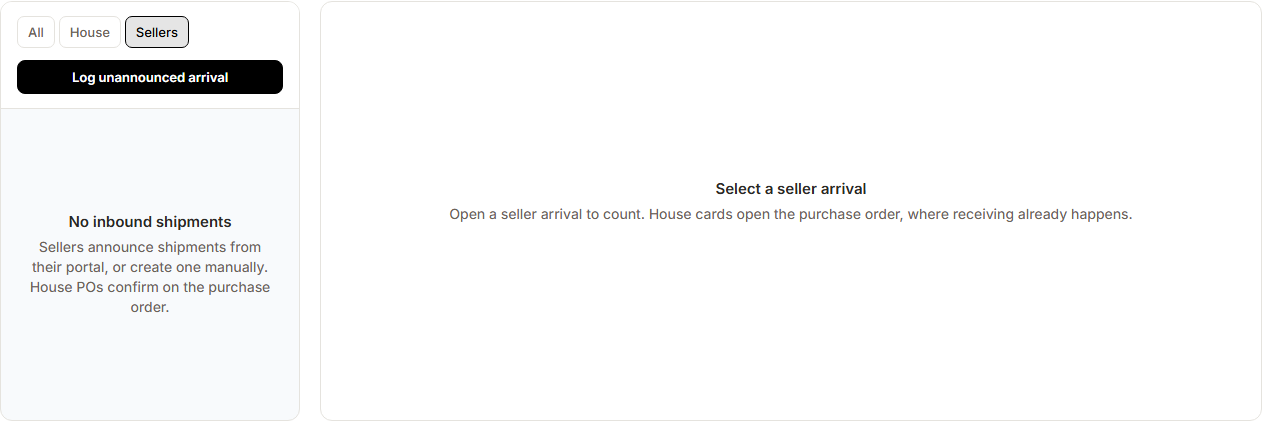
The shipment number on the card matches the one on the seller's box labels. Click the card to open it.
3. Needs your OK
A card marked Needs your OK has no Receive button yet. The warehouse is nearly full, so you decide first.
- Click the card.
- Click Accept shipment, or type a reason in Why (the seller sees this) and click Decline.
Accepted, it becomes Expected and the seller is told to ship. Declined, it is cancelled and the seller sees your reason.
4. Check before counting
Some shipments carry products you asked to see first: products that break your What we accept from sellers rules, or every first time product when Review new products before they arrive is on. Those show under Check before counting with the reason, for example Bigger than the largest size the warehouse takes.
For each product:
- Approve: it is stored for that seller from now on and is not checked again.
- Decline, with a reason in Why (the seller sees this): that product comes off the shipment. The seller sees Not accepted and your reason.
Products that break no rule are never stopped here. Counting stays locked until every flagged product is decided.
5. Count it in
- Count each line. Your count is the count. It is what enters the building, whatever the packing slip says.
- Click Confirm receipt & open putaway. You need at least one unit counted.
If a line is over, every unit you counted goes in and the extra is recorded.
6. If the count is short
When your count is below what the seller sent, Riverr asks what to do:
| Choice | What happens |
|---|---|
| Keep counting | Back to the count. Nothing is posted |
| Leave open for the balance | The units you counted go in now. The shipment stays open and the rest is still expected. No variance yet |
| Close short | The units you counted go in. The gap opens a variance, and the seller sees the gap on their shipment |
Either way, the quantity the seller sent stays on the record. It is never quietly changed to match your count. When the balance arrives, open the same shipment and count the rest.
Gaps and what to do with them: Resolve an intake variance.
7. Put it away
Confirming opens a Putaway task on Inventory → Tasks.
Put the units on a bin that already holds that seller, or on an empty bin, which then becomes theirs. House bins and other sellers' bins are refused. One owner per bin.
What the putaway does to the count depends on whether that stock is tracked by bin:
| Not tracked by bin | Tracked by bin | |
|---|---|---|
| The seller's on hand goes up | At Confirm receipt & open putaway | As you place units in bins |
| Placing a unit | Records where it sits. The line says Locations only, stock is not tracked by bin | Moves it into the bin count |
If you place fewer than the task expects, choose Keep the rest open to leave the remainder on the task as a new line, or pick a variance reason if the units are missing. Putaway variances stay on your side.
Unannounced box
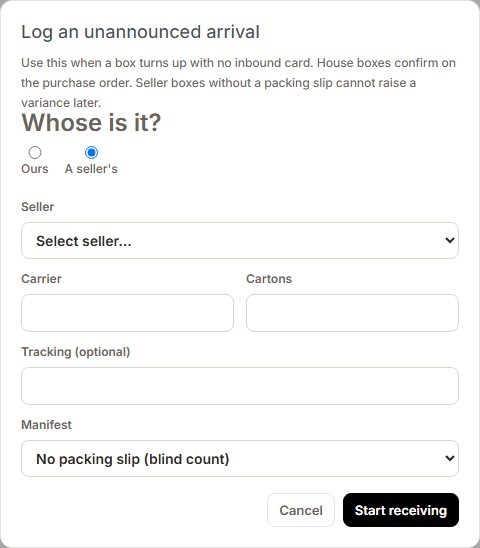
Inventory → Receiving → Log unannounced arrival. Under Whose is it? choose A seller's and pick the seller. If there is no packing slip, choose No packing slip (blind count). A variance cannot be raised later on a blind arrival.
See it
3PL → Retail stock or Inventory → Stock → Seller. The seller sees it on My stock. What their sales channels see: See seller stock, space, and sync.
It leaves when a customer order line for it is batched: the seller's stock comes down and the floor picks the units. It is never decorated and never used as a blank.