task
Unsynced Orders: Full Sync Flow
Last updated September 11, 2026
> How to map variants, apply templates, and move orders into production efficiently
The Philosophy
Listings auto-import.
You do not pre-configure your entire catalog.
You configure products when they sell.
And when product structures repeat, you use templates to eliminate repeated work.
---
Step 1: Start From the Order (Always Recommended)
- Go to Orders
- Filter by Unsynced
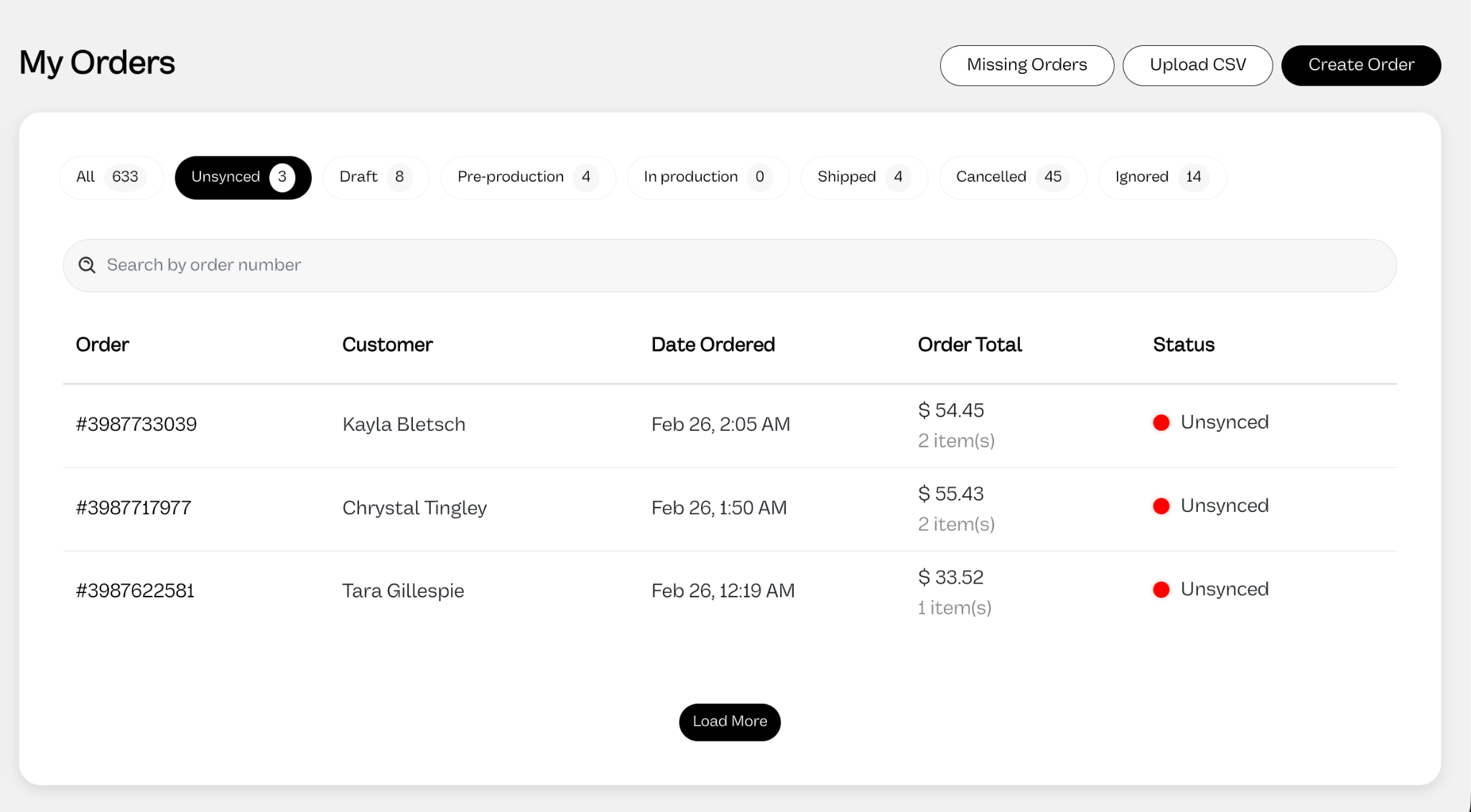
- Open the order
- Click Sync Listing on the Unsynced item
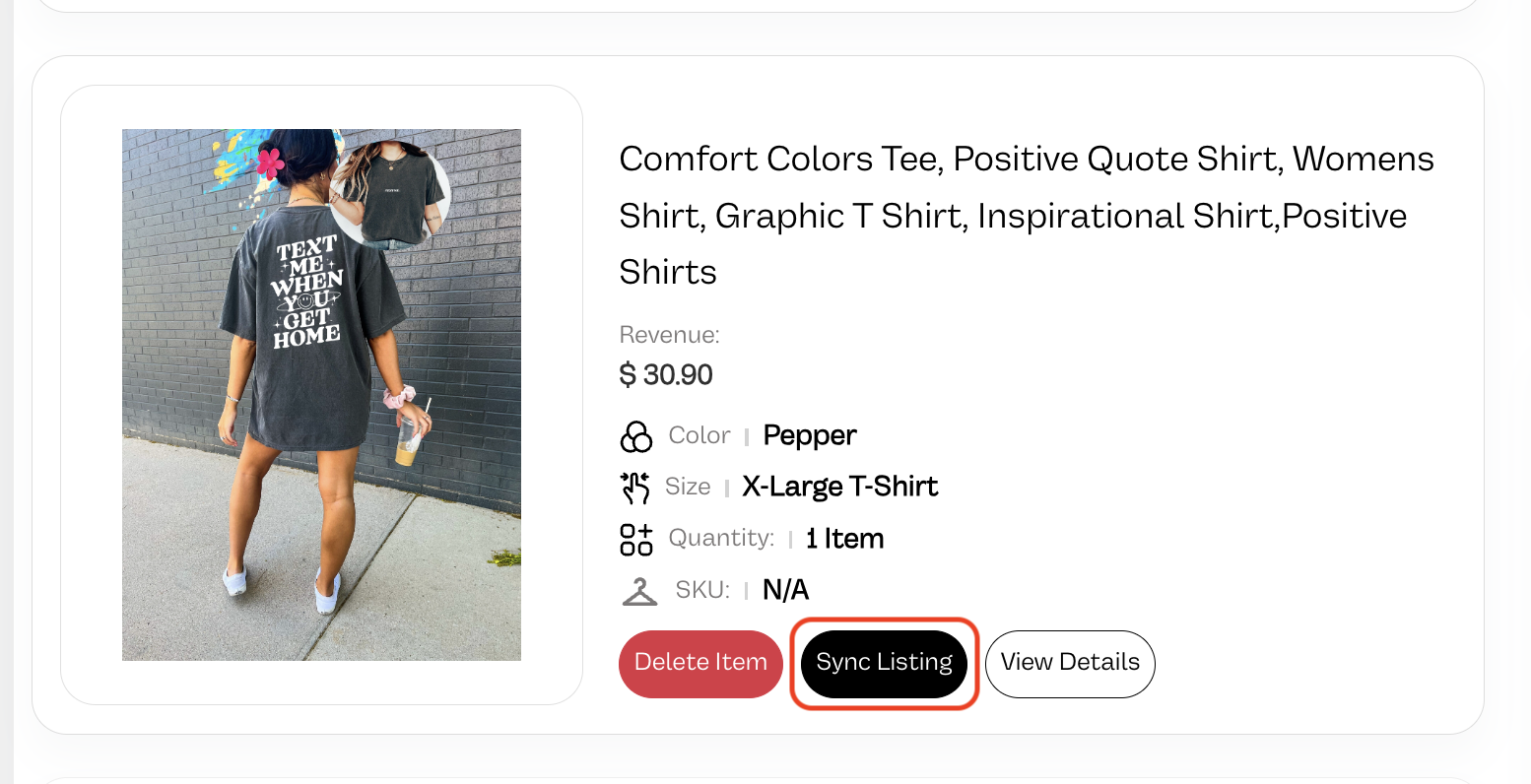
This takes you directly to the listing that requires setup.
This keeps you from configuring products that never sell.
---
Step 2: Select a Blank Product
Inside the variant mapping table:
- Click Select Global Blank Product
- Choose the correct blank (example: Staple Tee | 5001)
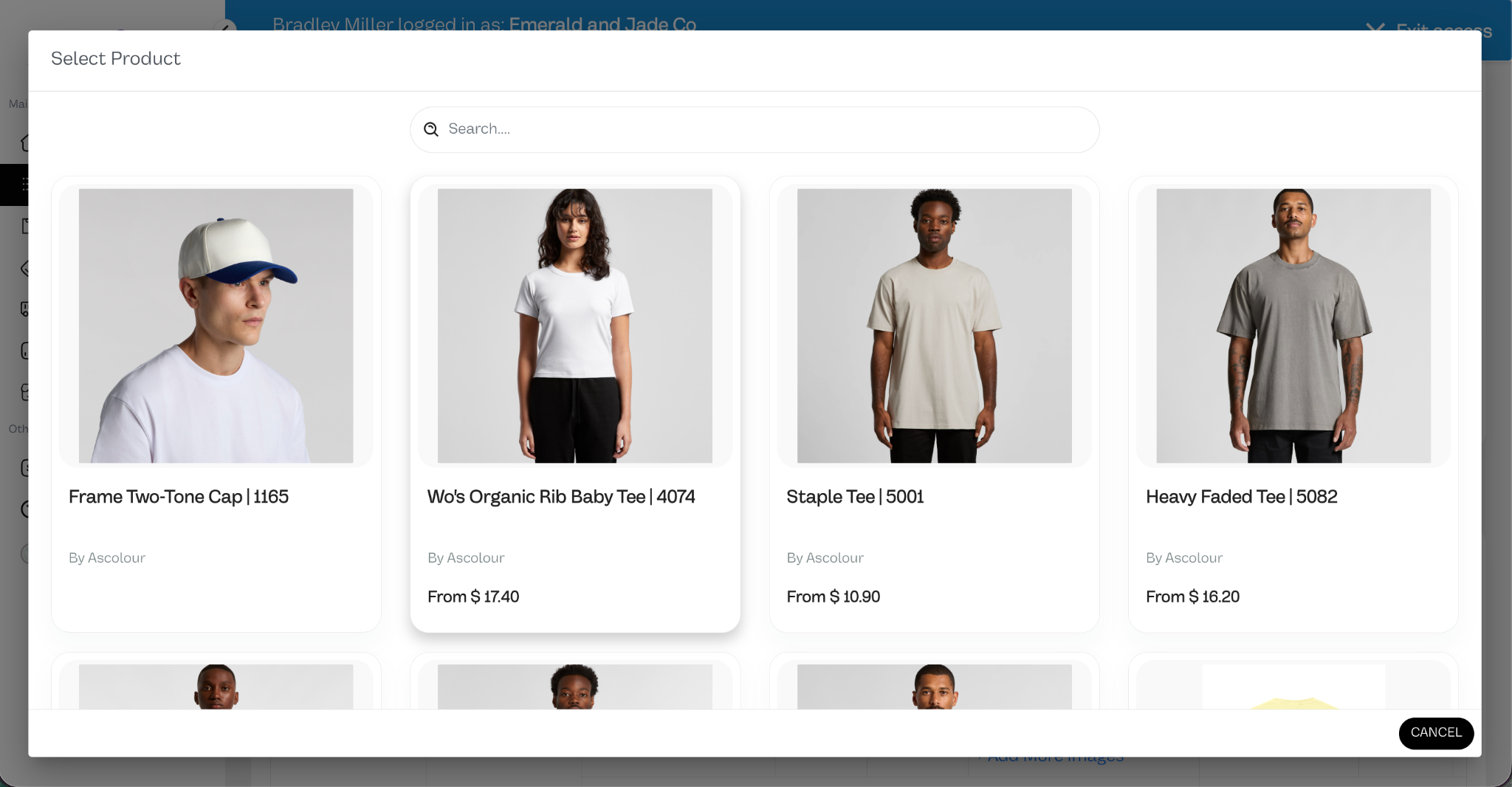
This defines the garment that will actually be printed.
---
Step 3: Customize & Add the Print File
Once the blank product is chosen, the customizer will then open for you to:
- Choose colors
- Choose placement(s) (Front, Back, etc.)
- Upload the print file
- Save the options for that blank product
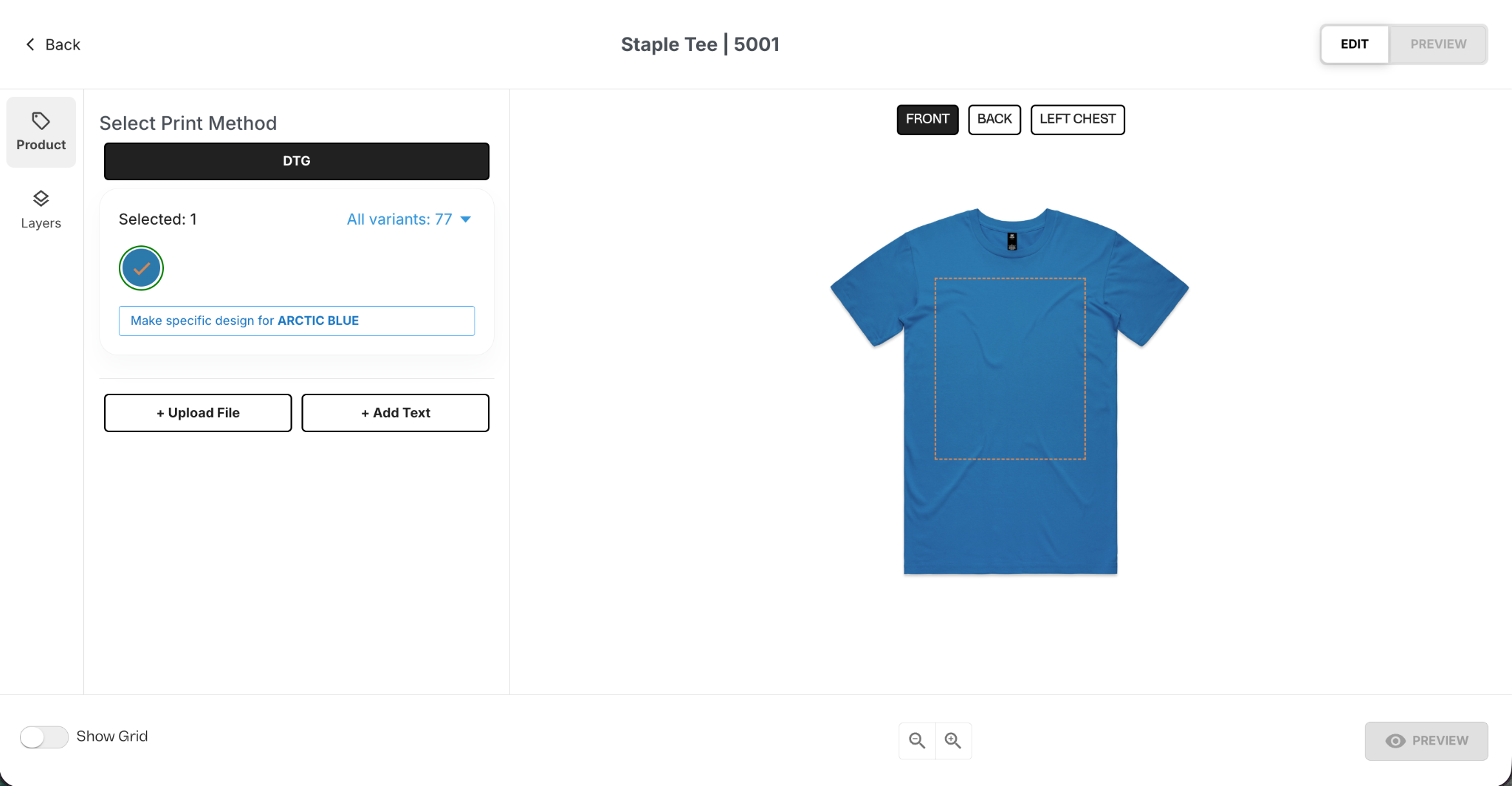
Note: You can repeat this for as many blank products as needed for that specific listing. This means one listing can have multiple blank products connected to it.
---
Step 4: Map the Variant Rows
Now connect store variants to blank variants. Only the options you have added above will be available for the row. For example, if you only selected the Staple Tee | 5001 in the global settings, you will not be able to choose the Bella Canvas 3001 in the individual row.
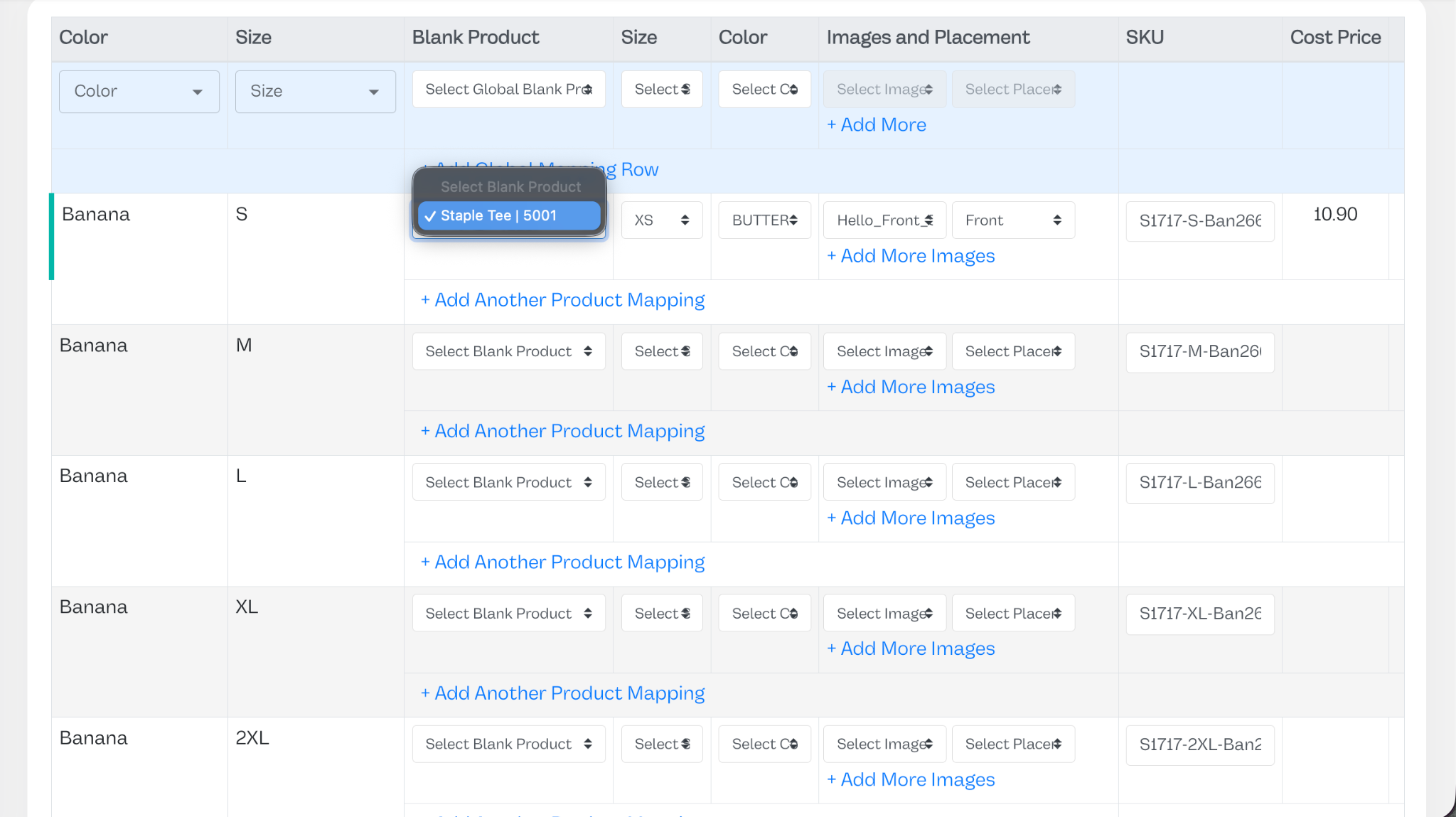
For the variant(s) in the order:
• Select blank product
• Select blank Size
• Select blank Color
• Confirm SKU
You do not need to map every variant.
You can sync only the variant connected to the current order to move quickly.
---
Templates: The Force Multiplier
Templates are for when:
• You reuse the same blank product
• The same size and color structure exists
• The same placement structure is used
• Only artwork changes
This applies to:
- Shopify collections
- WooCommerce catalogs
- Big Cartel stores
- Etsy duplicates
- Any structured product system
How to Create a Template
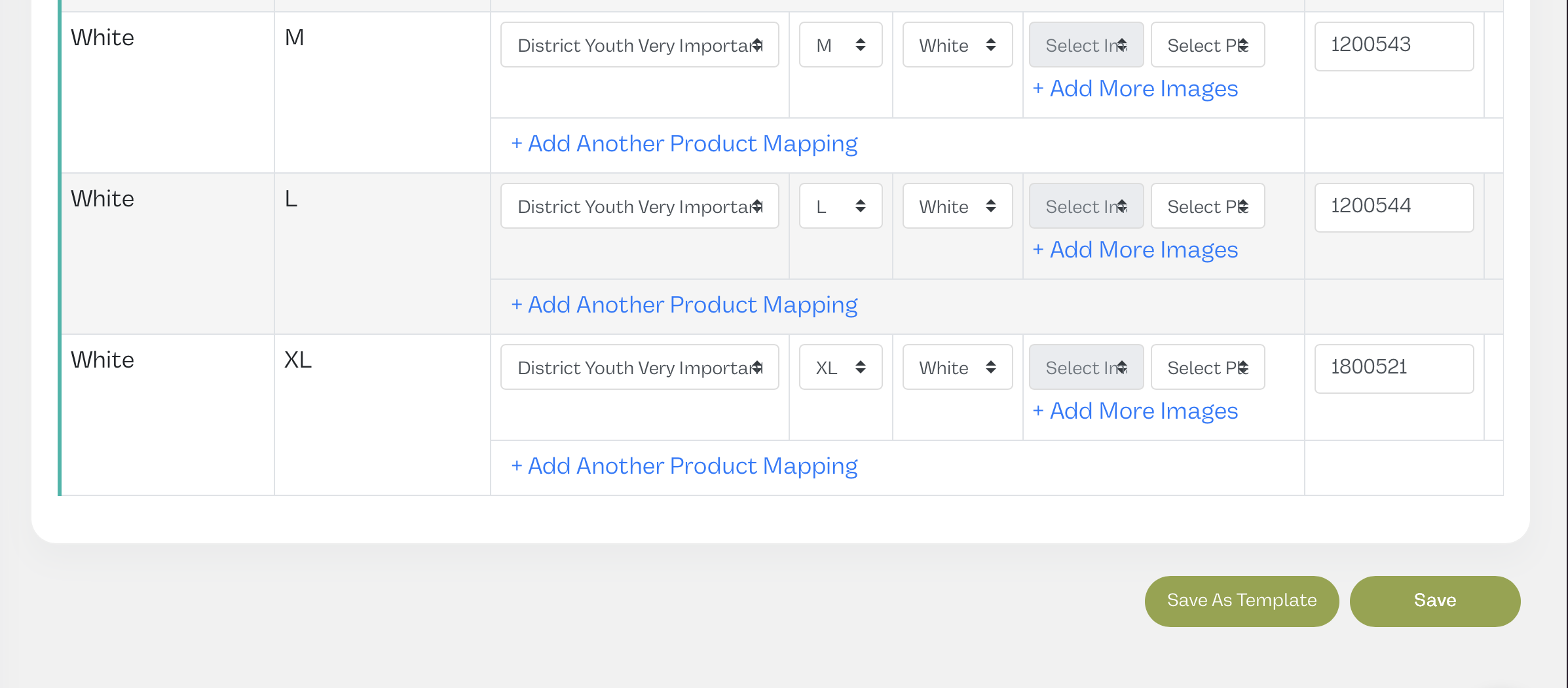
Once you have one listing fully mapped, at the bottom there is a button that says "Save As Template." Click this and then name the template.
Name it clearly
Example:
“Staple Tee 5001 – Standard Tee Setup”
The template stores:
• Blank selection
• Variant mapping structure
• Placement configuration
It does not permanently lock the print file.
How to Apply a Template
When a new Unsynced order appears that has the same variants as the listing you saved as a template:
- Open the order
- Click Sync Listing
- Click Use Template
- Select your saved template
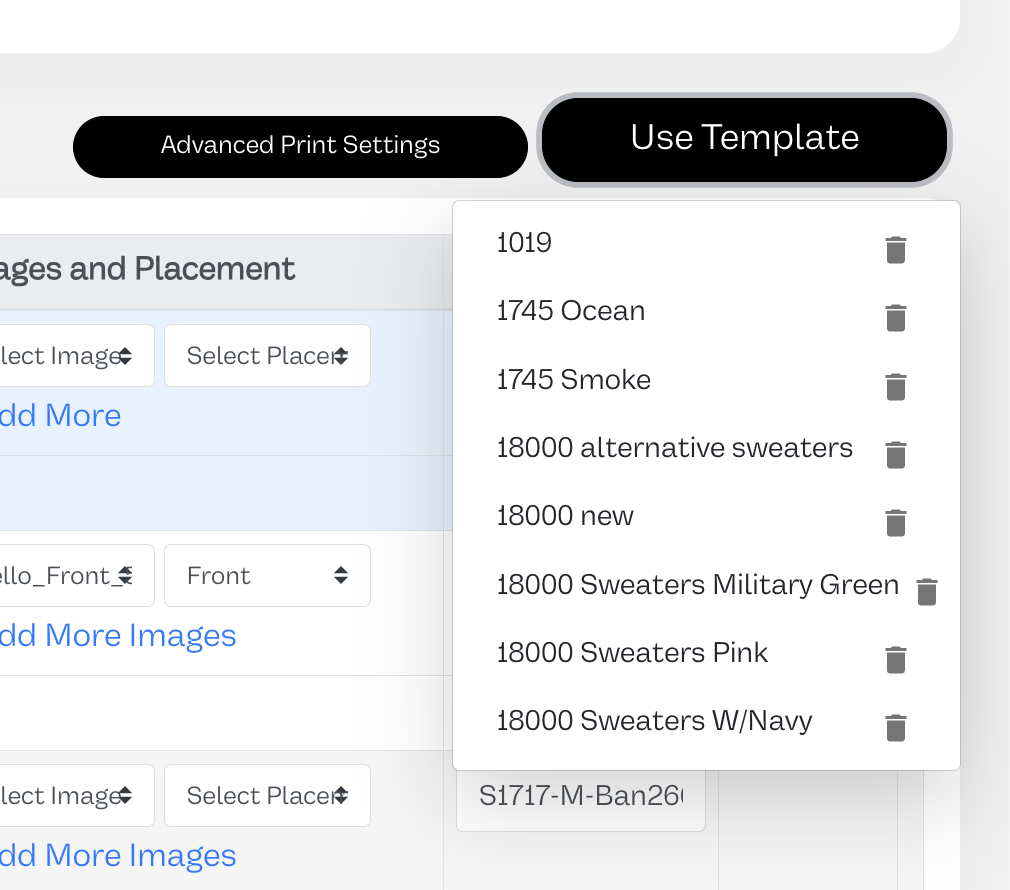
Instantly:
• Blank is selected
• Variants are mapped
• Placement structure is built
Now you only:
• Upload the new artwork
• Save
Sync complete.
---
Variant-Only Sync vs Full Listing Sync
You have two operational options:
Variant-Only (Fastest)
Map and upload only the variant connected to the order.
Best for:
• Large catalogs
• Low-volume SKUs
• Testing new products
---
Full Listing Sync (Automation Mode)
Map every variant and configure fully.
Best for:
• Best sellers
• Core products
• High-volume SKUs
---
When Templates Shine Most
Templates are ideal when:
• 10 products use the same garment
• 50 designs use the same hoodie structure
• Your brand standardizes on 2–3 blanks
• You launch collections regularly
Instead of rebuilding mapping every time, you apply structure in seconds.
---
Operational Best Practice
For scalable brands:
- Let listings auto-import
- Wait for real orders
- Sync from the Orders page
- Use templates for repeat product structures
- Map only what’s needed when appropriate
- Fully sync only proven sellers
Unsynced is not a problem.
It is simply a production checkpoint.
Once mapped, the order flows automatically into Pre-Production.
---
Frequently Asked Questions
Why did my order show as Unsynced?
An order becomes Unsynced when at least one item in the order is connected to a listing that has not been fully mapped for production.
Most common reasons:
- Blank product not selected
- Variant size or color not mapped
- Print file not assigned
- Placement not saved
Even one unmapped variant will cause the order to appear as Unsynced.
---
Do listings automatically import when I connect a store?
Yes.
When you connect a sales channel:
- All existing listings are automatically imported
- Listings are refreshed regularly
- You do not need to manually sync your entire catalog
The system stays up to date automatically.
---
What does the “Sync Listings” button do?
The Sync Listings button does not force existing listings into production.
It attempts to pull in listings that do not yet exist inside Riverr.
If a listing is already imported and Unsynced, pressing this button will not resolve the issue. You must map the blank product and assign print files.
---
Should I sync my entire catalog immediately?
No.
Best practice is to:
- Wait for real orders
- Filter by Unsynced orders
- Sync only the variants needed
This prevents unnecessary setup work on products that may never sell.
---
Do I have to sync the entire listing?
No.
You can sync only the specific variant connected to the order.
This is ideal for:
- Large catalogs
- Low-volume SKUs
- Testing new designs
You can fully sync the listing later if it becomes a frequent seller.
---
When should I use a Template?
Templates are best when:
- You reuse the same blank product
- Variant structures repeat
- Placement structure stays consistent
- Only the print file changes
Templates allow you to instantly apply blank selection and variant mapping to new listings, dramatically reducing setup time.
---
What does a Template store?
A template stores:
- Blank product selection
- Variant size mapping
- Variant color mapping
- Placement structure
It does not permanently lock the artwork. You can upload a new print file after applying a template.
---
What is “Import / Refresh Listing” used for?
Use Import / Refresh Listing only if:
- You added new variants in your connected store
- Product details were changed externally
- Something appears missing
It is not required during normal syncing.
---
What is a “Draft Product”?
A Draft Product is used in the Draft Order workflow.
Draft products are typically:
- Customizable items
- Manually configured before fulfillment
- Used when artwork or details are not finalized at checkout
For standard Print On Demand items, you do not need to switch to Draft or Customizable Product.
---
What is the difference between Unsynced and Draft?
Unsynced
The product needs production mapping (blank + print file).
Draft
The order requires manual review or customization before production.
They represent different workflow states.
---
Why is SKU showing N/A?
SKU may show as N/A when:
- Variant mapping is incomplete
- Blank product has not been selected
- SKU was not generated yet
Once variant mapping is finalized, SKU will populate correctly.
---
What happens after I finish syncing?
Once:
- Blank product is mapped
- Variant is connected
- Print file is assigned
The order will automatically move out of Unsynced and into the next production stage (typically Pre-Production).
No additional action is required.
---
Can I ignore a product?
Yes.
If you do not want Riverr to fulfill a specific product:
- Toggle Ignore Product
- Save
This removes it from production eligibility without deleting it from your external store.